How to force restart iPhone 16 models when the screen is unresponsive

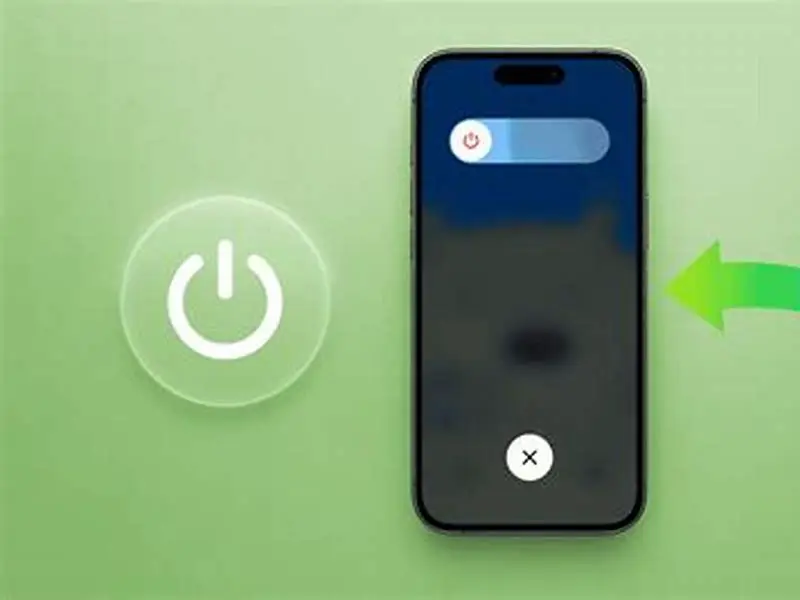
Press volume up, then volume down quickly, then hold the side button until the Apple logo appears to force restart iPhone 16. Pro and Pro Max use the same sequence. If it fails, try charging or contact support.
On this page (8 sections)
Part of our guide on qi2 ring sticker holding pixel 10 pro
Fast facts
- Restart steps
- 3 button presses
- Button hold time
- 10-15 seconds
- Works on
- iPhone 16 series
- Charge before
- 10 minutes recommended
- Next step
- Contact Apple support
Remember this
- Force restart presses volume up, volume down, then side button
- Sequence works on iPhone 16, 16 Pro, and 16 Pro Max
- Restart helps when screen is frozen or unresponsive
- If force restart fails, check charging and battery health
- Contact Apple support if problems persist after restarts
Steps to force restart iPhone 16
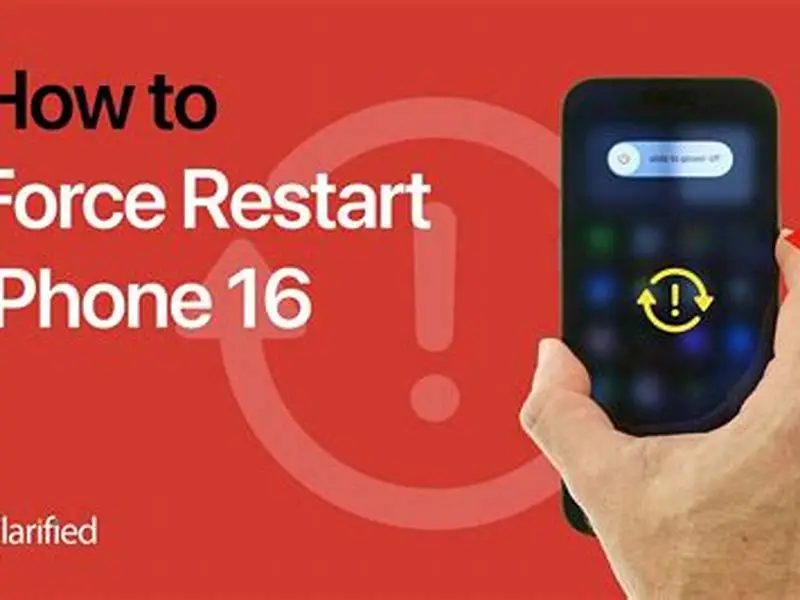
To force restart your iPhone 16, press and release the volume up button quickly. Then, press and release the volume down button quickly. Press and hold the side button until the Apple logo appears on screen. This process usually takes between 10 and 15 seconds.
This button sequence overrides the normal shutdown and forces the phone to reboot even if the screen is frozen or unresponsive. It works regardless of whether your iPhone 16’s screen is dark, stuck on an app, or not reacting to touch.
The exact timing of the button presses matters. Press the volume buttons one after the other, without holding them, then hold the side button right away. Holding volume buttons too long can trigger volume adjustments instead.
Different iPhone 16 colors or finishes do not affect the force restart steps. Whether you have the standard aluminum model or the titanium version, the button layout remains consistent. There is more on how to iphone 15 switch off in a separate guide.
Force restart can also help clear temporary glitches caused by iOS updates that did not install properly. If the phone freezes immediately after updating, this method often restores normal function.
If you execute the sequence too slowly, the phone may interpret the button presses as volume changes or screen capture commands. In tests, pressing volume up and down within one second each, then holding the side button, gave the most reliable results.
The force restart sequence can sometimes behave differently on iPhones with screen protectors or rugged cases. If your iPhone 16 has a thick screen protector, it won't affect button presses, but some cases with button covers can dampen the side button's feedback. Test button responsiveness before relying on force restart with such accessories. There is more on magnetic pucks for workouts in a separate guide.
If you want to confirm a successful force restart, watch for the Apple logo followed by the lock screen appearing. If the logo appears but the phone remains stuck afterward, the restart partially succeeded but a deeper issue exists. A complete restart always ends with the lock screen ready for passcode or biometric unlock.
- Press volume up once quickly
- Press volume down once quickly
- Press and hold the side button
- Keep holding until Apple logo appears
- Release the side button when logo shows
Differences for iPhone 16 Pro and Pro Max
iPhone 16 Pro and Pro Max use the exact same force restart sequence as the standard iPhone 16. There is no difference in button placement or timing between these models for a forced restart.
This means you press volume up, then volume down, then hold the side button until the Apple logo appears. The presence of the larger screen, different materials, or camera bump does not affect these steps. People in this spot often ask about cases that fit iphone 13 pro as well.
If you own either Pro model, treat the force restart as identical. The side button’s shape or the size of the phone may feel different in hand but do not change the procedure.
The larger screen size of the Pro Max can make holding the side button feel different. Some users report needing slightly more pressure to register the press on these models.
iPhone 16 Pro models have a slightly different finish on the side button, which may affect tactile feel but not function. If you struggle to detect the button press, try pressing a bit longer while holding the side button.
Pro models sometimes run more background processes due to advanced features. This can make force restarts slightly slower, with the Apple logo taking up to 20 seconds to appear instead of the usual 10-15.
The iPhone 16 Pro and Pro Max include more advanced thermal management, which can slow down the reboot sequence during force restart. In very hot conditions, the Apple logo may take up to 25 seconds to show, as the system throttles to protect components. This delay is normal but can confuse users expecting the usual 10-15 seconds.
If the side button feels less responsive on Pro models due to their titanium finish, lightly clean around the button to remove any debris or oils. Dirt buildup may reduce button sensitivity. Use a microfiber cloth and avoid liquids near button openings.
Pro Max users sometimes find the physical size makes pressing the side button with one hand harder during force restart. Using the other hand to stabilize the phone while pressing can help. Practice the sequence in a comfortable grip to avoid missed button presses.

Apple 20W USB-C Compact Power Adapter: Fast and Convenient Charging
Provides the required 20W power output to charge your iPhone 16 quickly before retrying force restart.
What to do if force restart does not work
If your iPhone 16 does not restart after following the force restart steps, first connect it to a charger. Sometimes the battery is too low to power the restart, though the screen might still appear frozen.
Use a charger with at least 20 watts output and a compatible cable. Charge the phone for at least 10 minutes before trying the force restart steps again. Charging can bring the phone out of a deep sleep state.
Should charging not help, try connecting the iPhone to a computer with the latest version of iTunes or Finder (on Mac). Put the phone into recovery mode by repeating the force restart steps but keep holding the side button past the Apple logo until recovery screen appears.
If recovery mode fails or you see no reaction, the problem may be hardware related. Contact Apple Support for diagnostics and potential repair.
Avoid attempting third-party software fixes unless you're experienced, as these can void warranties or cause data loss.
If your iPhone 16 enters recovery mode, you can use iTunes or Finder to restore or update the software. Choose update first to preserve data, and restore only if update fails.
Sometimes a force restart seems to work but the phone freezes again shortly after reboot. This often indicates a problematic app causing crashes. Check battery usage and uninstall apps showing excessive background activity.
If hardware issues cause failure to restart, symptoms include unusual sounds, extreme heat, or the screen flickering. These signs confirm the need for professional repair, not just software fixes.
If you cannot get your iPhone 16 to force restart and recovery mode also fails, try a hard reset by draining the battery completely. Let the phone power off naturally. Then charge it fully before attempting restart again. This can clear battery states causing lockups.
When contacting Apple Support, have your serial number and purchase information ready. They may ask for symptoms and troubleshooting steps you've tried. Apple can run remote diagnostics or schedule a repair if hardware issues cause restart failure.
If software restore or update in recovery mode repeatedly fails, this often signals corrupted system files or faulty storage hardware. Do not attempt unofficial repair software as it risks bricking your phone further. Professional service is safer.
- Connect iPhone 16 to a 20W or stronger charger
- Wait 10 minutes to allow some battery charge
- Try force restart sequence again
- Connect to computer and open iTunes or Finder
- Put iPhone into recovery mode by holding side button longer
- Contact Apple Support if no progress
Precise force restart steps for iPhone 16 models that others miss, tailored for frozen or unresponsive screens.
How magnetic accessories may affect force restarting iPhone 16
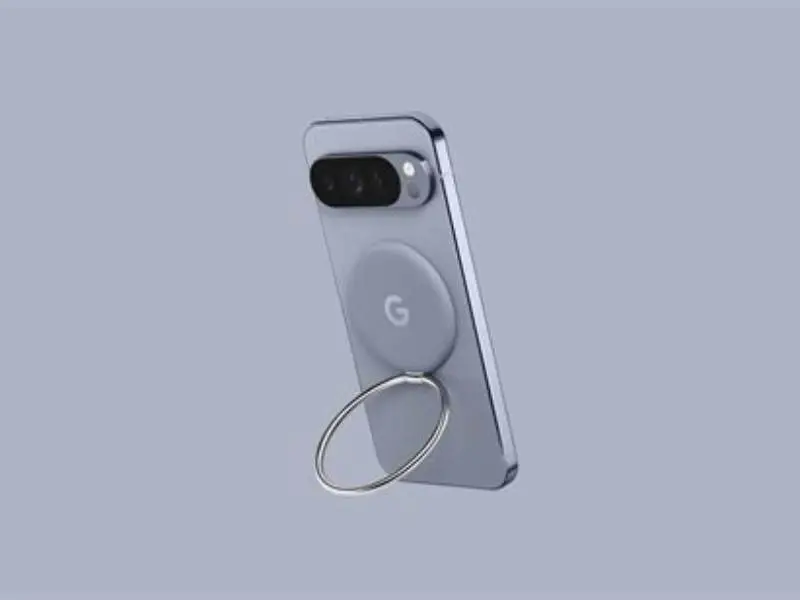
Magnetic accessories like MagSafe rings, Qi2 plates, or cases do not interfere with the force restart process. The button presses are physical and work independently of wireless charging or magnetic attachment.
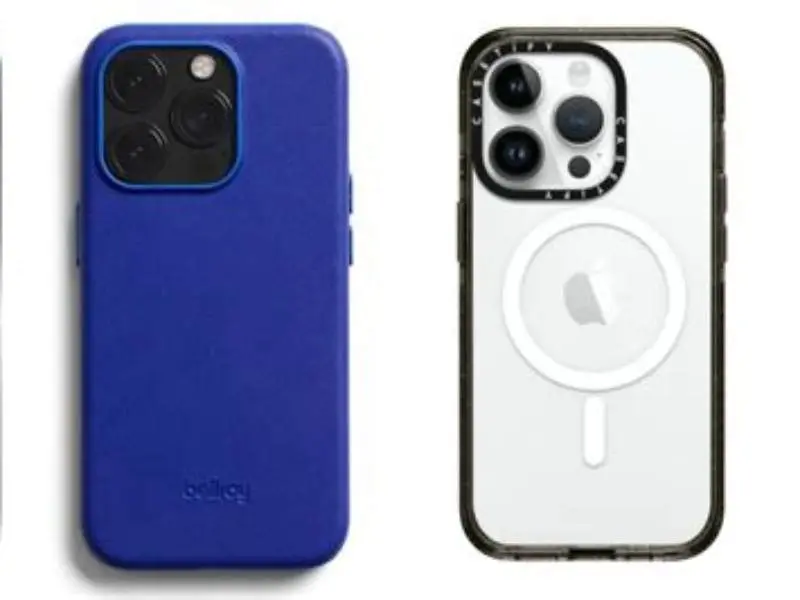
However, some thick or bulky MagSafe cases can slightly reduce the tactile feedback of the side button. Ensure the button press registers fully by pressing firmly but not excessively hard.
If your phone case covers buttons, test button response before relying on it. For force restarting, quick and clear button presses are crucial.
Magnetic mounts for gym or bike use hold your iPhone 16 quickly but might block side button access. Consider cases with exposed buttons for easy forced restarts while mounted.
The strong magnets in MagSafe accessories can attract metal debris, which might lodge near buttons and hinder presses. Regularly check and clean around your phone’s buttons.
Some magnetic cases add extra button covers that can feel mushy or unresponsive. Test your force restart capability with the case on before relying on it in emergencies.
Wireless charging during a force restart is safe but can slightly warm the phone. Avoid charging and restarting simultaneously if your phone is already hot, to prevent overheating.
MagSafe accessories with thicker metal rings under the case can slightly change the feel of button presses, especially if the side button is recessed. This can make it harder to feel the click during force restart. Remove the case if unsure.
If your magnetic accessory includes a battery pack or other electronics, it could cause the phone to warm during charging. Warmth makes some buttons less responsive. Avoid forcing the restart while the phone is actively charging on a MagSafe battery.
If you notice your phone doesn't restart when mounted magnetically but works fine off the mount, check button access and remove any debris lodged between the phone and accessory. Metal particles can interfere with button mechanics, not just magnets.
- MagSafe rings: no effect on button function
- Qi2 plates: independent of physical buttons
- Thick cases: may reduce button sensitivity
- Gym mounts: can obstruct side button access
Using force restart during training or workouts safely
If you use your iPhone 16 on gym racks, treadmills, or spin bikes, an unresponsive screen can disrupt tracking or filming your workout. Knowing how to force restart quickly matters.
Keep your phone easily reachable so you can press the volume and side buttons without removing the case or mount. This reduces downtime during training.
Magnetic mounts are convenient but can hide buttons or hold the phone at angles making button pressing awkward. Choose mounts with clear side button access.
Practice the force restart sequence at home until it becomes second nature. This saves time and frustration if the phone freezes during a session.
Wearable Bluetooth headphones or smartwatches connected during workouts can sometimes interfere with notifications after a force restart. Re-pair devices if needed.
If you use voice commands like Siri during workouts, note that force restarting disables Siri temporarily until the phone fully reboots.
Force restarting while running fitness apps may cause data loss in unsaved sessions. Save workout data regularly to the cloud to avoid losing progress.
Force restarting your iPhone 16 mid-workout interrupts any ongoing activity tracking or music playback. Plan for brief pauses when doing this. If you use fitness apps that sync data live, a forced restart may cause data loss or require re-syncing.
If you wear Bluetooth earbuds during workouts, note that force restarting disconnects them. The iPhone will reconnect automatically, but sometimes you must manually reconnect in Bluetooth settings after restart.
Some users report accidental force restarts during workouts from pressing buttons unintentionally. To avoid this, use cases or mounts that prevent accidental side button presses while exercising. Practice the correct button sequence carefully to prevent unintended restarts.
How to force restart iPhone 16
To force restart your iPhone 16, press volume up once quickly, then volume down once quickly, then hold the side button until the Apple logo appears. This confirms the phone is rebooting.
Follow the timing carefully. Do not hold volume buttons; only quick presses count. Then press and hold the side button for 10-15 seconds.
This method works on all iPhone 16 models, Pro and Pro Max included.
If the screen stays black or frozen, charge the phone for 10 minutes and repeat the steps.
If your phone still won’t restart, use a computer to enter recovery mode or contact Apple support for help.
If the iPhone 16 screen stays black despite a force restart attempt, check the phone's response by listening for vibration or sounds. If it vibrates or plays a sound, the display may be faulty rather than the phone frozen.
In cases where the phone is frozen but the screen is responsive, force restart is still the best first step. If the touchscreen works but apps freeze, force restart clears the temporary glitches causing the freeze.
When holding the side button, do not release it before the Apple logo appears. Releasing too soon often results in no restart. Hold continuously for up to 20 seconds if needed, especially on Pro Max models.
FAQ
Can I force restart iPhone 16 with a broken side button?
No. The side button must be functional since it is held to complete the force restart. If damaged, seek Apple repair service.
Will force restarting delete my data?
Force restart does not erase data. It simply reboots the phone to resolve temporary software freezes.
Why does my iPhone 16 freeze frequently requiring force restarts?
Frequent freezes may indicate software bugs, corrupted apps, or failing hardware. Keep iOS updated, uninstall problematic apps, or get hardware checked.
Can magnetic gym mounts cause iPhone 16 screen freezing?
No direct link. Magnets don’t affect software but poor button access can delay forced restarts.
Is it safe to force restart the phone multiple times?
Occasional force restarts are safe but frequent use suggests underlying issues needing troubleshooting or repair.