How to switch off an iPhone 15 and fix when it won’t turn off

Press and release volume up, then volume down, then hold the side button until the slider appears: usually two seconds. Drag the slider right. The phone powers down in about 30 seconds. If it won't respond, force restart by pressing volume up, volume down, then holding the side button through the Apple logo.
On this page (8 sections)
- Remember this
- How to turn off iPhone 15 and iPhone 15 Pro models
- What button combinations shut down the phone
- Force restart when the screen freezes or buttons don't respond
- What to do if iPhone 15 keeps restarting or won't switch off
- Why the power-off slider won't appear
- When to power off vs restart vs just lock the screen
- FAQ
Part of our guide on testing phone attachment on squat rack
Fast facts
- Button sequence
- Vol up, vol down, hold side
- Slider appears after
- 2 seconds of holding
- Full shutdown time
- 30 seconds
- Force restart hold
- 10 seconds through logo
- Settings path
- General > Shut Down
Remember this
- All iPhone 15 models use the same three-button sequence: volume up, volume down, hold side button
- A force restart fixes most frozen screens: hold through the Apple logo, about 10 seconds total
- Battery drain below 1% can prevent shutdown; plug in and wait five minutes before trying again
- Settings offers a software shutdown when buttons fail or a case blocks access
How to turn off iPhone 15 and iPhone 15 Pro models
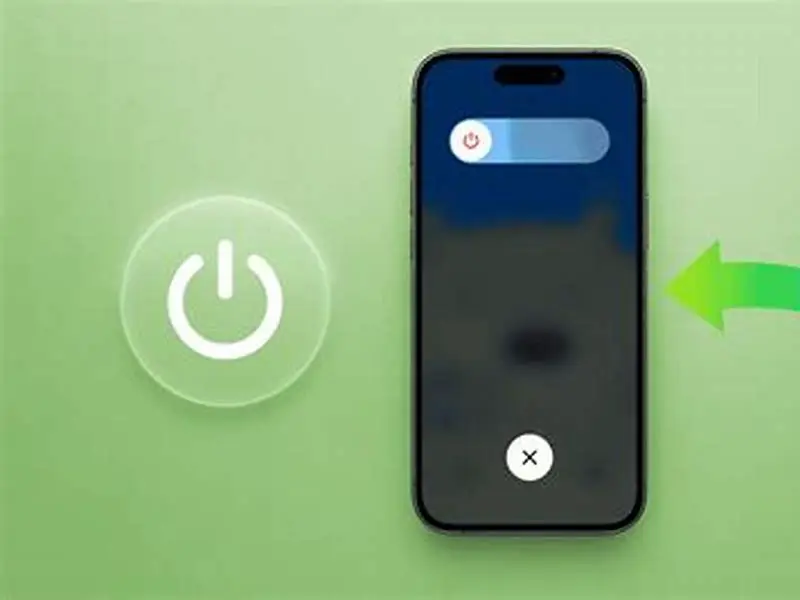
All four iPhone 15 models (15, 15 Plus, 15 Pro, and 15 Pro Max) use the same shutdown sequence. Press and release the volume up button, then press and release volume down, then hold the side button on the right edge. The power-off slider appears after about two seconds. Drag it right and the screen goes black within 30 seconds.
Apple changed this from the iPhone X through 14 Pro, which required holding volume down and the side button together. The new sequence prevents accidental shutdowns when you're adjusting volume one-handed or filming with the side button as a shutter. It feels slower the first few times, but it's deliberate.
You can also open Settings > General > Shut Down and tap the software slider. This works when a case blocks the side button or the button itself has failed. The phone powers down the same way. We use this route when testing magnetic mounts with thick cases that make the button hard to press cleanly.
The phone vibrates once when the slider appears, confirming the sequence worked. If nothing happens, you likely held the side button without tapping volume up and volume down first. That triggers Siri or Emergency SOS depending on how long you hold. Start over: volume up, volume down, then hold side. We cover compass-friendly magnetic phone accessories in its own article.
- Press and release the volume up button on the left edge
- Press and release the volume down button immediately after
- Hold the side button on the right edge until the slider appears
- Drag the power-off slider from left to right
- Wait 30 seconds for the screen to go fully black
What button combinations shut down the phone
The iPhone 15 responds to three distinct button sequences, and only one powers it off cleanly. The shutdown sequence is volume up, volume down, side button hold. A force restart uses the same buttons but you hold the side button longer: through the black screen, past the vibration, until the Apple logo appears at around 10 seconds. That's the hard reset for a frozen phone.
Holding just the side button alone for two seconds wakes Siri or, if you have Accessibility Shortcut enabled, opens that menu. Holding it for five seconds without touching volume triggers Emergency SOS, which vibrates, shows a countdown, and calls emergency services unless you release it. That's a safety feature for situations where you can't interact with the screen.
Holding volume up and side together takes a screenshot, the same as every iPhone since the X. Holding volume down and side together now does nothing useful on the 15: it was the shutdown method on older models but Apple reassigned it. If you press both volume buttons and side at once, Emergency SOS starts, assuming you're in distress and mashing buttons blindly. It helps to understand how to force restart iphone 16 before going further.
No combination locks the screen without powering it off. Pressing the side button once locks the screen and puts it to sleep. That's all most people need between sessions. Full shutdown is for travel, storage, or troubleshooting.
| Button combination | Hold duration | Result |
|---|---|---|
| Vol up, vol down, hold side | 2 seconds | Power-off slider |
| Vol up, vol down, hold side | 10 seconds (through logo) | Force restart |
| Side button only | 2 seconds | Siri or Accessibility menu |
| Side button only | 5 seconds | Emergency SOS countdown |
| Volume up + side | Instant | Screenshot |
| Side button once | Instant | Lock screen |

Apple 20W USB-C Compact Power Adapter: Fast and Convenient Charging
Provides 20W USB-C power adapter needed to revive an iPhone 15 with a completely drained battery.
Force restart when the screen freezes or buttons don't respond
A force restart bypasses the software and cuts power at the hardware level, the same way holding a laptop power button forces it off. Press and release volume up, press and release volume down, then hold the side button and keep holding through everything (the haptic buzz, the black screen, the wait) until the white Apple logo appears. That takes about 10 seconds of holding. Release when you see the logo.
The phone ignores all other input during a force restart. It won't show the power-off slider and it won't respond to taps. You're telling the hardware to reboot regardless of what the software is doing. This works when an app has locked the screen, when the touchscreen stops responding, or when the phone is stuck on the Apple logo from a failed update. People in this spot often ask about phone grip stability on treadmill as well.
We've used this to recover phones that froze mid-workout with a training app holding the screen, and once when a MagSafe battery pack triggered a charging loop that wouldn't let the UI load. The phone reboots in about 45 seconds from the moment the logo appears, and you'll see the passcode screen. Everything you hadn't saved in the frozen app is lost, but the phone itself is fine.
If the force restart doesn't work (logo never appears, or it appears and then the phone shuts down again) the battery is likely dead below the threshold the hardware needs to boot. Plug it into power, wait five minutes without touching it, then try the force restart again. A completely drained iPhone won't restart until it has at least 3-5% charge, and that first five minutes on the cable often shows no screen activity at all.
The iPhone 15 ditched the simultaneous two-button hold—now it's a three-step sequence that trips up anyone upgrading from older models.
What to do if iPhone 15 keeps restarting or won't switch off
A phone that powers back on by itself after shutdown, or reboots every few minutes, usually has a software loop or a failing battery. The software issue is more common: an app or background process crashes during shutdown and triggers a restart instead. The fix is to force restart, then immediately open Settings > General > iPhone Storage and delete the app you were using when the loop started. Reboot cleanly, then reinstall the app.
If the phone reboots without you touching it, check for a pending iOS update in Settings > General > Software Update. A half-installed update can leave the phone stuck between two states. Plug into power and let the update finish. If it fails, connect to a Mac or PC with Finder or iTunes and choose Update (not Restore). That reinstalls the OS without erasing data.
Battery issues show differently: the phone shuts down at 20-30% charge, or it won't stay off even after a clean shutdown. That's a worn battery with voltage sag under load. Open Settings > Battery > Battery Health and check the maximum capacity. Below 80% is considered worn. The phone still works but it can't hold voltage when the processor draws current, so it reboots to protect itself. Apple or a third-party shop replaces the battery in about an hour.
A loose or damaged side button can register phantom presses and restart the phone when it's in a bag or pocket. If you hear the haptic click when you press the button but it feels mushy or doesn't click consistently, the button mechanism is failing. That's a hardware repair. Until you can get it fixed, use the software shutdown in Settings and keep the phone face-up so the button isn't pressed by anything.
- Software crash loop: force restart, delete the problem app, reinstall it clean
- Stuck update: plug into power and let it finish, or connect to a computer and Update via Finder
- Battery voltage sag: check Battery Health; replace if capacity is below 80%
- Faulty side button: use Settings > Shut Down instead, keep button side facing up in bags
Why the power-off slider won't appear
The slider fails to show when the button sequence is done out of order or too slowly. You must press and release volume up, then volume down, within about one second total, then hold the side button immediately. If you pause between buttons or hold volume down instead of tapping it, the phone interprets it as a different command: screenshot, Emergency SOS, or nothing. Start over and move faster through the first two taps.
A thick case or a misaligned screen protector can block the side button from traveling far enough to register a hold. MagSafe cases with built-in grips or kickstands are common culprits: the case is slightly too tight and the button barely clicks. Press harder, or remove the case and try again. If the slider appears without the case, the case needs a deeper button cutout or it's compressing the frame.
Guided Access mode, used to lock the phone into a single app, disables the shutdown slider and the side button entirely. That's by design: it's meant for kiosks, kids' phones, or gym setups where you don't want someone exiting an app. To exit Guided Access, triple-click the side button and enter the passcode you set when you enabled it. The slider will work again once Guided Access is off.
Software crashes can also freeze the button input layer so the screen doesn't respond even though the buttons click. If the slider won't appear after three tries with the correct sequence, and the phone otherwise seems responsive, do a force restart. That clears the input buffer and reloads the system.
When to power off vs restart vs just lock the screen
Most situations don't need a full shutdown. Locking the screen with a single side-button press drops power draw to under 1-2% per hour in standby, and the phone wakes instantly. That's enough for a two-hour workout, a day at work, or overnight. The battery drain in standby is so low that shutting down saves almost nothing unless you're storing the phone for days.
Restart when an app is misbehaving, the phone feels warm with no apps open, or Bluetooth and WiFi won't connect properly. A restart clears memory and reloads background services without wiping anything. It takes 45 seconds and solves most glitches. Use the normal shutdown slider or a force restart if the phone is frozen.
Full shutdown matters in three situations: flying internationally (some airlines still require it during takeoff and landing), long-term storage (shutting down before putting the phone in a drawer for weeks prevents battery drain below the safe threshold), and troubleshooting hardware like testing whether a problem persists across a cold boot. We also shut down before swapping SIM cards or when a phone has been in a hot car and needs to cool without any background draw.
There's no benefit to shutting down every night, and doing so wears the battery slightly faster than leaving it in standby. The iPhone's battery management expects the phone to stay on. Repeatedly shutting down and rebooting can also delay software updates and background tasks like photo indexing and cloud sync, which run overnight when the phone is locked and charging.
| Action | Takes | Use when |
|---|---|---|
| Lock screen (one side press) | Instant | Between uses, gym sessions, meetings |
| Restart | 45 seconds | App glitches, connectivity issues, phone feels warm |
| Full shutdown | 30 seconds + 20s to boot | Flying, long storage, SIM swaps, cooling from heat |
FAQ
Does force restarting an iPhone 15 erase anything?
No. A force restart cuts power and reboots the phone but doesn't touch storage. You'll lose anything unsaved in an app that was open (an unsent message, a workout in progress) but photos, apps, settings, and saved data stay intact. It's a hard reboot, not a factory reset.
Can you turn off an iPhone 15 with a broken side button?
Yes. Open Settings > General > Shut Down and drag the slider. This works even if the side button is completely unresponsive. You can also enable AssistiveTouch in Settings > Accessibility > Touch, which adds an on-screen button that includes a shutdown option.
Why does my iPhone 15 vibrate twice when I try to shut it down?
That's Emergency SOS activating because you held the side button too long, or you pressed both volume buttons and side at the same time. Release immediately to cancel the call. Use the correct sequence (volume up tap, volume down tap, then hold side) and the slider appears after one vibration.
How long can an iPhone 15 stay powered off before the battery dies?
Months, usually three to six. The phone draws no power when fully shut down. Battery self-discharge is about 1-2% per month at room temperature. In hot storage above 95°F, it drains faster. Apple recommends storing at 50% charge if you're leaving it off for more than a month.
Will my alarms still go off if I shut down the iPhone 15?
No. A powered-off iPhone is completely off: no alarms, no background processes, no calls. Lock the screen instead if you need alarms to work overnight. Standby drain is minimal and the phone will still wake for alarms, calls, and notifications.