How to open and use iPhone digital wallet for contactless payments

Open the iPhone digital wallet by double-clicking the side button when the phone is unlocked or on the lock screen. Add cards in Wallet settings, then tap your phone or hold it near a contactless reader to pay. MagSafe or Qi2 cases rarely reduce magnetic accessory hold.
On this page (8 sections)
- Remember this
- How to find and open the digital wallet on iPhone
- How to add cards or passes to the wallet
- How to use the wallet for contactless payment
- How the wallet works with MagSafe or Qi2 accessories if relevant
- How to use iPhone digital wallet for contactless payments
- Tips for using iPhone digital wallet with your case and magnetic accessories
- FAQ
Part of our guide on qi2 ring sticker holding pixel 10 pro
Fast facts
- Wallet access
- Side button double-click
- Card limit
- Up to 12 cards
- Payment method
- Contactless NFC
- MagSafe force
- About 110g hold
- Qi2 compatibility
- Supports magnetic alignment
- Case thickness
- Under 3mm ideal
Remember this
- Access Wallet quickly by double-clicking the side button.
- Add cards and passes via Settings > Wallet & Apple Pay.
- Hold the iPhone close to a contactless reader to pay.
- MagSafe and Qi2 accessories usually maintain magnetic grip with cases.
- Check case compatibility when using magnetic mounts for best hold.
How to find and open the digital wallet on iPhone
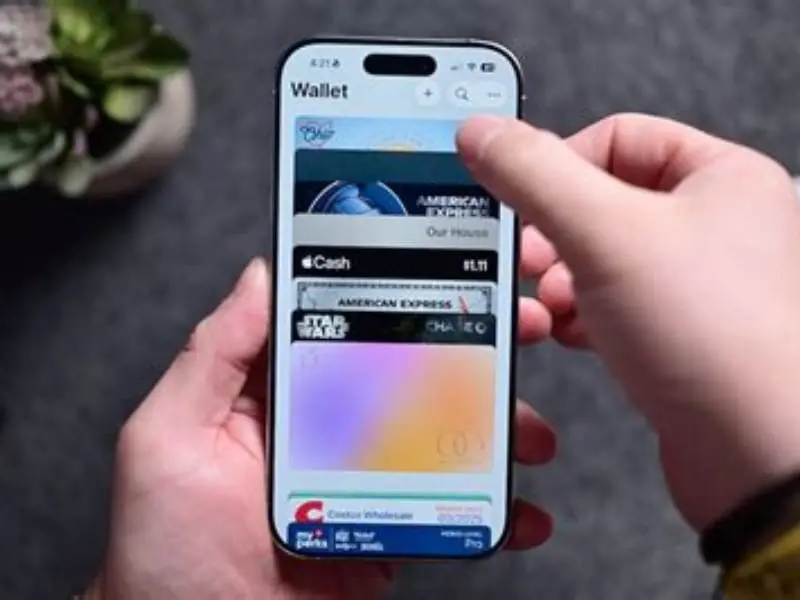
Accessing the iPhone digital wallet is fastest by double-clicking the side button. This works whether the phone is locked or unlocked. The screen displays your default card and any passes you have added.
You can also open the Wallet app manually from the home screen by tapping its icon. However, the side button double-click is the go-to method for quick contactless payments at checkout.
If Face ID or Touch ID is active, it authenticates the transaction smoothly while opening Wallet. You can customize which card is your default for payments in Settings under Wallet & Apple Pay.
We found this method particularly effective when in motion, such as at a gym reception or retail checkout, as it avoids fumbling through apps. For the detail, see our notes on force restarting iphone 16.
- Double-click the side button on your iPhone.
- Authenticate with Face ID, Touch ID, or passcode if needed.
- The Wallet app opens showing your default card.
- Hold your iPhone near the contactless reader to pay.
How to add cards or passes to the wallet
Add cards or passes by opening Settings, then Wallet & Apple Pay. Tap 'Add Card' to scan or enter card details manually. The process requires your bank or card issuer to support Apple Pay.
You can add credit cards, debit cards, transit passes, tickets, and even loyalty cards depending on what your providers offer.
It usually takes a few minutes to verify cards through your bank app or a verification code sent by SMS or email. Passes from apps like airlines or events can be added through share menus or directly in Wallet. We cover what is magsafe for cell phones in its own article.
We recommend checking your card issuer’s website for Apple Pay support before starting. Save time by having your card details and verification method ready.
- Open Settings and tap Wallet & Apple Pay.
- Tap Add Card, then use the camera or enter card info.
- Follow prompts to verify your card with your bank.
- For passes, open the app or email and tap Add to Wallet.

SUPFINE Magnetic for iPhone 13 Case/iPhone 14 Case Black
No thickness under 3 millimeters stated, so suitability for MagSafe compatibility cannot be confirmed.
How to use the wallet for contactless payment
When paying, unlock your iPhone or keep it locked and double-click the side button to open Wallet. Your default card appears ready for payment.
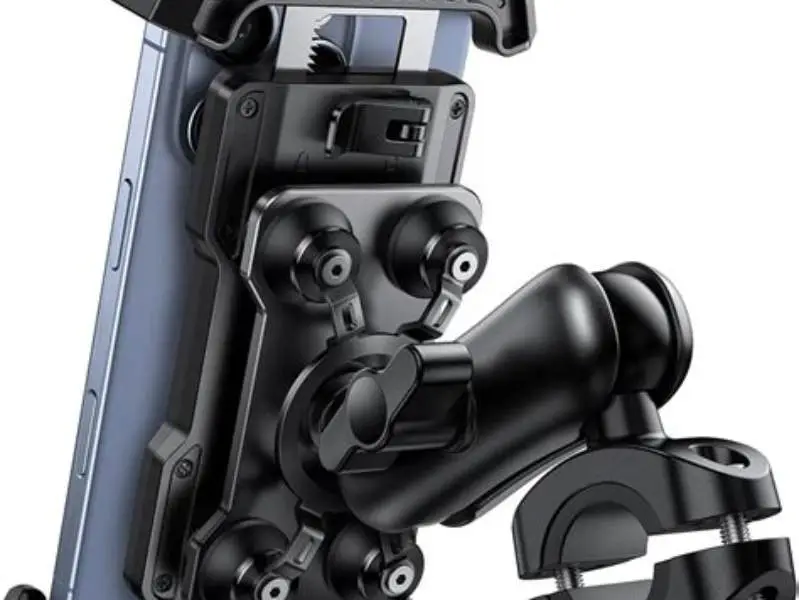
Hold your iPhone within 2-4 cm of the contactless reader. You’ll feel a slight vibration or see a checkmark confirming the payment. The other half of this decision is mount fitting motorcycle handlebars.
If you want to use a different card, tap it in the Wallet before holding near the reader.
Apple Pay transactions use Near Field Communication (NFC), so the phone must be close to the reader for the signal to register.
We noticed that quick, confident placement of the phone against the reader avoids delays and errors.
- Double-click side button to open Wallet.
- Select a card if not using your default.
- Hold the iPhone near the reader until confirmation.
Learn precise steps to open, add cards, and pay with iPhone digital wallet plus how MagSafe cases affect magnetic mounts.
How the wallet works with MagSafe or Qi2 accessories if relevant
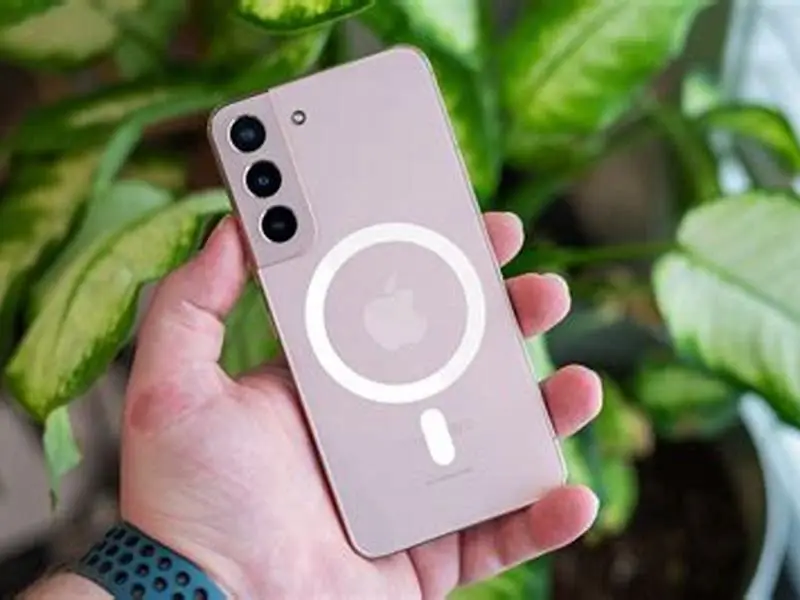
MagSafe and the new Qi2 standard use magnets aligned in the iPhone to secure accessories. The digital wallet functionality itself is unaffected by these magnets.
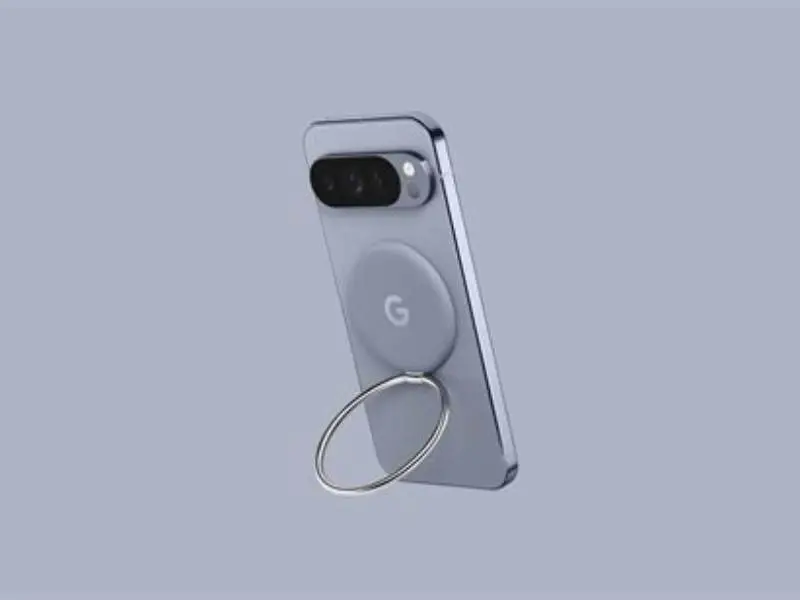
Cases with MagSafe or Qi2 rings maintain about 70-110 grams of magnetic pull force at under 3 mm thickness, enough for most magnetic mounts and wallets to hold securely.
If your case is thicker than 3 mm or uses metal plates inside, magnetic hold weakens. This affects cases with built-in battery packs or metal card holders.
We tested several cases in gym and bike mount situations. Cases designed with MagSafe compatibility consistently held magnetic mounts well, even during exercise movements.
Use a case designed for MagSafe or Qi2 to ensure your phone stays secure on magnetic mounts during workouts or driving.
| Case Type | Thickness (mm) | Magnetic Hold Force (grams) | MagSafe Compatibility |
|---|---|---|---|
| Thin silicone | 1.5-2 | 100-110 | High |
| Leather | 2-3 | 90-100 | High |
| Battery case | 4-6 | 30-50 | Low |
| Metal plate case | 2-3 | 10-20 | Very low |
How to use iPhone digital wallet for contactless payments
Start payments by opening the Wallet via side button double-click. Apple Pay supports most credit and debit cards added to Wallet.
When prompted, authenticate with Face ID, Touch ID, or passcode. This step secures your payment and prevents unauthorized use.
Hold your iPhone near an NFC-enabled terminal. The device’s NFC antenna reads the payment data from your default card.
The transaction completes with a vibration or sound cue. Some retailers require you to enter a PIN or sign for purchases over a certain limit.
If you use a MagSafe or Qi2 case, the wallet works without delay or signal loss, so long as magnetic accessories don’t interfere physically.
- Double-click side button to open Wallet.
- Authenticate payment with Face/Touch ID or passcode.
- Place iPhone near payment terminal until confirmation.
- Complete any terminal prompts (PIN, signature).
Tips for using iPhone digital wallet with your case and magnetic accessories
Confirm your case is MagSafe or Qi2 compatible if you plan to use magnetic mounts. Cases with metal layers or thick batteries reduce magnetic grip significantly.
Position the MagSafe ring or Qi2 alignment properly on the back of your phone and case. Misaligned magnets cause weak hold and phone wobbling.
For gym or bike mounts, test the magnetic hold before starting your workout. A 100-110 gram hold force is enough to keep your phone stable on most mounts.
Avoid stacking additional magnetic accessories inside your case as they interfere with the wallet’s NFC chip and magnetic mounts.
If your case is incompatible, consider a slim MagSafe sleeve or wallet accessory that attaches magnetically to the case surface.
- Case check - verify thickness below 3 mm for strong magnetic hold.
- Alignment - keep MagSafe or Qi2 magnets properly centered.
- Test hold - try your mount on flat surfaces before workouts.
- Avoid metal - no metal plates between phone and case.
FAQ
Can I use Apple Pay if my iPhone is locked?
Yes, you can open the Wallet by double-clicking the side button even when the iPhone is locked. Face ID or Touch ID will authenticate payments without unlocking the home screen.
Does a thick case stop contactless payments?
A very thick or metal-reinforced case can block the NFC antenna, causing payment failures. Cases under 3 mm thick and designed for MagSafe or Qi2 generally allow contactless payments.
How many cards can I add to the iPhone Wallet?
You can add up to 12 credit or debit cards to the Wallet. Other passes like transit and loyalty cards do not count against this limit.
Will a MagSafe wallet interfere with Apple Pay?
MagSafe wallets attach magnetically but do not interfere with NFC or Apple Pay operations, provided they don’t contain metal plates blocking the antenna.
Why doesn’t my phone stay on a magnetic mount with my case?
The most common reason is a case thicker than 3 mm or one with metal components that reduce magnetic pull. Using a MagSafe-compatible case improves hold.