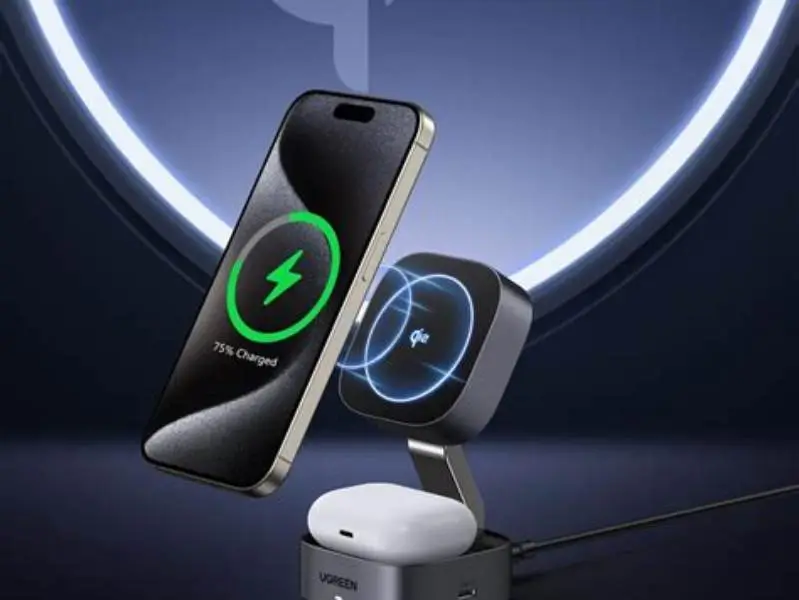
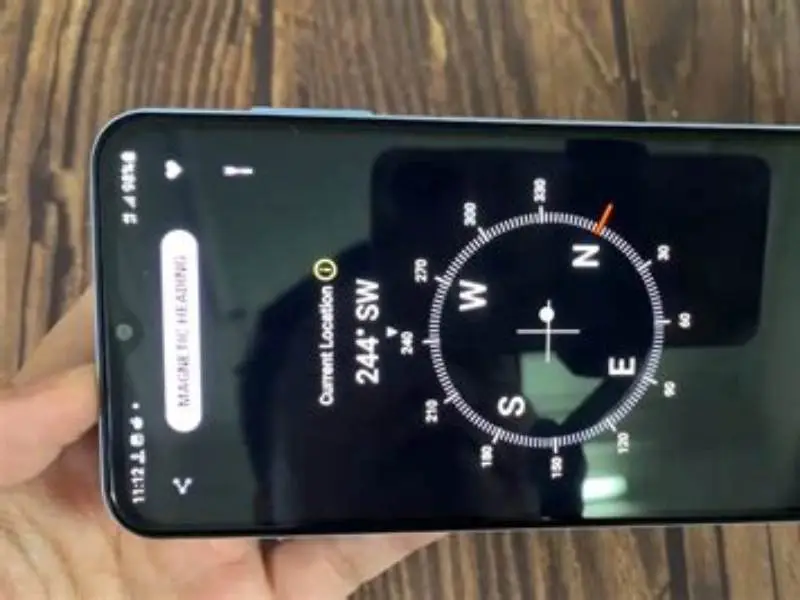
How to recalibrate your Pixel 9 compass after using a magnetic mount

Remove the magnetic mount. Open a compass or magnetometer app. Move the phone through broad motions that rotate it on all three axes until the heading steadies. Then verify accuracy with a reference or a field meter.
On this page (8 sections)
Part of our guide on compatibility of magsafe mounts
Fast facts
- Recalibration time
- about 30–90 seconds with active motion
- Magnetometer affected
- Yes
- Recommended motion
- broad rotations on all axes (one sequence)
- Magnetic mount effect
- can skew compass and related features
- Recommended tool
- magnetometer app or handheld field meter
Remember this
- Magnetic mounts can skew the Pixel 9 magnetometer. Recalibration is the reliable fix.
- Recalibrate after removing a magnetic mount. The phone does not always do this automatically.
- Use a compass or magnetometer app that shows live headings and field readings.
- Check calibration against a known reference or a handheld field meter.
- Magnetic interference varies by magnet strength, distance, and time exposed.
Why magnetic mounts can change Pixel 9 magnetometer readings
Smartphones use small magnetometers to sense the Earth’s magnetic field. The Pixel 9 relies on that sensor for compass headings and orientation in some apps.
Magnets near the phone add a local magnetic field. That field adds to or distorts the Earth’s field the sensor measures. The result is a shifted or unstable heading.
How large the shift becomes depends on magnet strength, how close the magnet sits to the sensor, and how long the phone sat near the magnet. Small, distant magnets cause tiny shifts. Strong magnets placed directly over the sensor can cause large errors.
You can estimate severity rather than guess numbers. Run a magnetometer app before and after placing the mount. If the reported field or heading changes noticeably, the mount is affecting the sensor. If values return to the baseline after removing the mount, the effect is temporary. If values remain shifted, recalibration is advisable. People in this spot often ask about using phone to measure magnetic field as well.
Device manufacturers and sensor docs describe these behaviors. For general background on Earth’s magnetic field values, see NOAA’s magnetic field overview. For Android sensor behavior, see the Android developer documentation on sensors. Google’s Pixel support pages note that manual sensor calibration can be needed after magnetic interference.
What else a magnet can affect
The magnetometer is the main sensor affected. Other systems can be influenced indirectly.
NFC and wireless charging rely on magnetic coupling. Strong mounts placed over those components can disrupt NFC reads or wireless charging alignment. It helps to understand pixel 9 compass and magnets before going further.
Augmented reality apps use sensor fusion. A skewed magnetometer can produce misaligned virtual content, because the system mixes magnetometer data with gyroscope and accelerometer readings.
Physical components can become temporarily magnetized if they are ferrous. That magnetization can create a local bias until it relaxes or until you remove the cause and recalibrate.
For these reasons, keep strong mounts away from the phone’s upper edge or camera area, where the Pixel 9 magnetometer commonly sits. There is more on gauss meter for MagSafe ring in a separate guide.
How the Pixel 9 handles calibration
The Pixel 9 does not reliably auto recalibrate the magnetometer after a magnetic mount is removed. Google’s support guidance and Android sensor behavior indicate manual recalibration is often required after magnetic interference.
That means you should perform a manual recalibration whenever you suspect magnetic influence. Do this after removing a mount, after swapping a magnetic wallet, or when a compass behaves oddly.
Automatic corrections can occur during normal use as the phone gathers sensor data, but they can take time and may not restore a clean baseline by themselves. Manual action is faster and more reliable before you rely on navigation or AR.
One clear recalibration routine
Remove the magnetic mount and any magnetic accessories from the phone and its case.
Open a compass or magnetometer app that shows live heading and field strength. Recommended apps: “GPS Status & Toolbox”, “Physics Toolbox Sensor Suite”, or the built-in Google compass features in Maps. Choose an app that displays numeric field values if possible.
Stand in an open area away from large metal objects and speakers. Metal surfaces can interfere with recalibration.
Hold the phone and rotate it smoothly so it turns on all three axes: pitch, yaw, and roll. You do not need many repetitions. One to three broad sequences that sweep through those rotations usually suffices.
Stop when the heading shown in the app stops jumping and the field value looks stable. That typically takes 30 to 90 seconds of motion, depending on how disturbed the sensor was.
Verify the compass against a known reference. Use a handheld magnetic compass or a second phone that you know is free of interference. Compare headings. If they match within a few degrees, the recalibration succeeded.
If the heading still fluctuates, move farther from local metal, repeat the rotation sequence, and retest. Persistent deviation suggests residual magnetization in a nearby object or the mount itself. Try a different location and repeat.
- Remove magnetic mount and accessories.
- Open a compass or magnetometer app (recommended examples provided).
- Stand away from metal and electronics.
- Rotate the phone across all three axes for 30–90 seconds.
- Stop when readings stabilize.
- Verify against a known reference.
How to verify recalibration and measure remaining interference
A simple verification is the heading comparison. Point the phone north and compare it to a trusted compass or a map with known orientation.
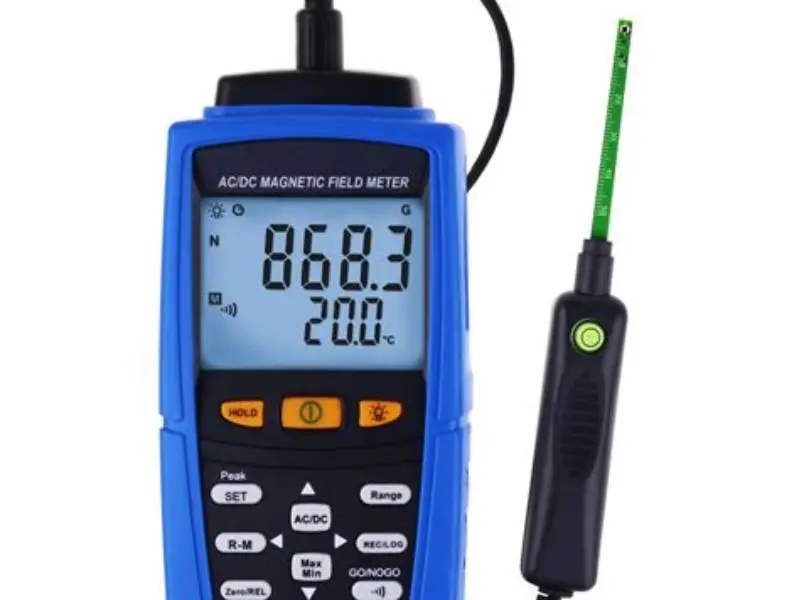
If you have a handheld magnetic field meter, use it to measure ambient field near the phone. Earth’s field varies by location. NOAA documents typical values and how they vary by latitude. Use the meter as a local baseline rather than rely on a single global number.
If an app shows a smoothly varying field value near that local baseline and the heading matches your reference, the sensor is ready.
If values still read high or the heading remains off, try removing nearby metal objects, cases, or mounts and repeat the motion sequence. If that fails, test with another phone to rule out a broader environmental source.
- Compare heading to a handheld compass or known map orientation.
- Use a handheld field meter to create a local baseline if available.
- Repeat recalibration away from metal if readings won’t stabilize.
Will a magnetic mount permanently damage the Pixel 9 magnetometer?
Permanent hardware damage from normal magnetic mounts is unlikely. Solid-state magnetometers in phones tolerate exposure without failing.
Very strong magnets or prolonged contact with ferrous materials can leave temporary biases in nearby metal parts. That usually resolves after removing the magnet and performing recalibration, and sometimes after waiting for a short period.
If you suspect hardware damage because recalibration never restores correct readings, contact Google support or an authorized service provider for diagnosis.
- rare permanent damage
- temporary sensor bias possible
FAQ
Will the Pixel 9 magnetometer recalibrate automatically after removing a magnet?
No. The Pixel 9 does not reliably auto recalibrate after magnetic interference. Perform a manual recalibration as described above.
How often should I recalibrate my Pixel 9 magnetometer?
Recalibrate after any magnetic accessory removal, or whenever headings look unstable.
Which apps work well for recalibration and testing?
Try GPS Status & Toolbox, Physics Toolbox Sensor Suite, or Google Maps’ compass features. Pick apps that show numeric field values for verification.
Can a magnetic mount change NFC or wireless charging?
Yes. Strong magnets near NFC coils or wireless charging components can interfere. Remove the mount if those functions act up.
How large are expected errors after magnetic interference?
Error size depends on magnet strength, proximity, and exposure time. Offsets can be minor or large enough to make navigation unreliable. Measure locally with a magnetometer app to understand the effect in your setup.